This tutorial walks through every click required to move a Unified Developer Experience (UDE) environment to the latest Dynamics 365 Finance and Operations application version. By the end you will have a UDE running the newest Platform and Quality Update (PQU), with the Finance and Operations Provisioning App reporting the new version under your Power Platform environment's Resources panel.
If you have not yet provisioned a UDE, start with our companion guide first: How to Set Up a Unified Development Environment (UDE) for Dynamics 365 Finance & Operations.
A UDE that drifts behind the latest PQU drifts behind production — and that is when subtle X++ bugs, deprecated metadata warnings, and "works on my machine" arguments start to appear in code review.
Each PQU brings new X++ language features, framework improvements, and Power Platform integration enhancements. Updating your UDE gives your developers access to these features the moment they ship — not months later when you finally cut over.
Microsoft ships security fixes and dependency updates as part of the regular PQU cadence. A stale UDE is an unnecessary risk surface, especially when the same X++ artefacts will eventually be deployed to production environments running the newer platform.
Bugs found in UAT or production frequently come down to platform version drift between developer UDEs and the higher environments. Keeping all UDEs aligned on the current PQU eliminates this entire class of false-positive defects.
Microsoft's twice-yearly Wave releases for Dynamics 365 introduce significant changes to the application surface. Developer UDEs should always lead the Wave by at least one PQU so your team can validate customisations before the same Wave reaches users.
Sign in to the Power Platform Admin Center. In the left-hand navigation panel, click Environments to open the full list of environments in your tenant.
Select the UDE environment you want to update by clicking on its name. You will be taken to the environment details page, which shows the environment URL, region, type, current state, and a set of resource cards on the right-hand side.
Under the Resources card on the right, click the Dynamics 365 apps link. This is where every installed Dynamics 365 application — including the Finance and Operations Provisioning App — is managed.
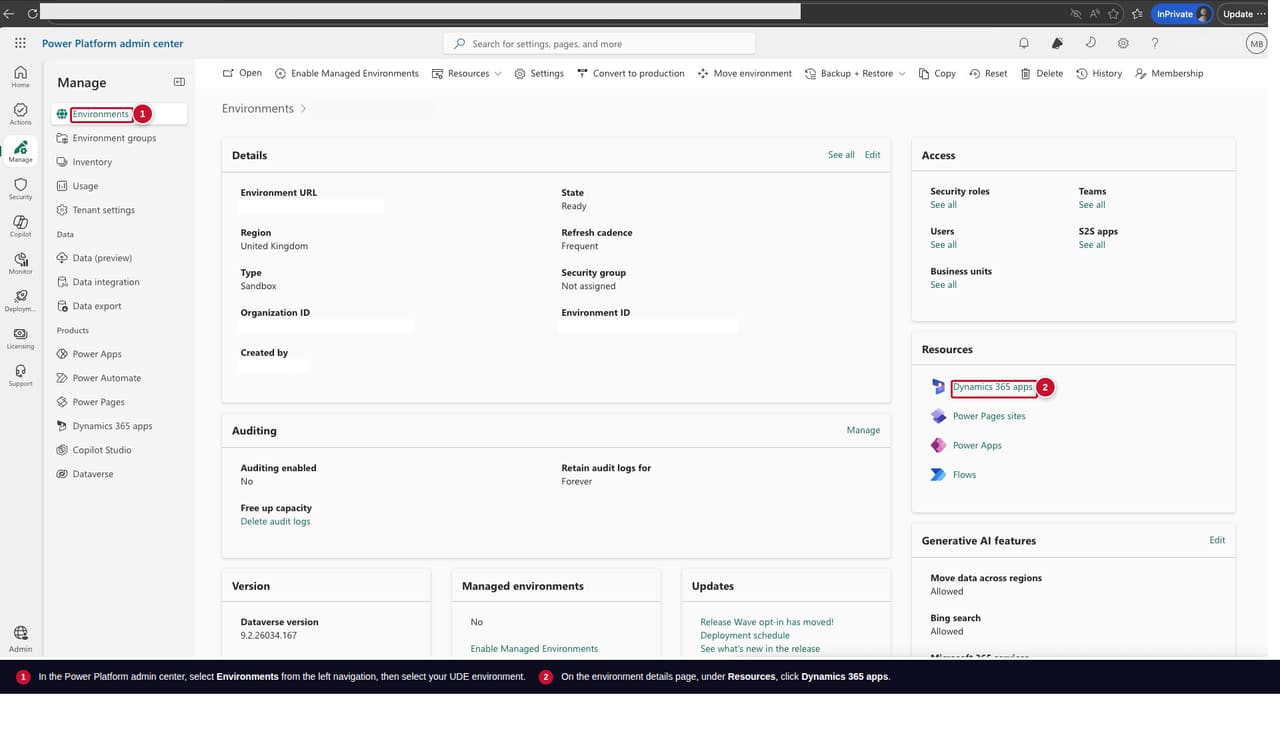 Figure 1: Environment details page — select Environments (1) then click Dynamics 365 apps (2) under Resources.
The Dynamics 365 apps page lists every installed application on this environment along with its current status and version. Scroll through the list until you find Dynamics 365 Finance and Operations Provisioning App.
Click the three-dot menu (…) next to the app name. A small context menu appears with two options:
Click Manage to proceed to the update page.
Tip: If the Manage option is greyed out or not visible, you are already on the latest available version of the Finance and Operations Provisioning App. There is nothing to do until Microsoft publishes the next PQU.
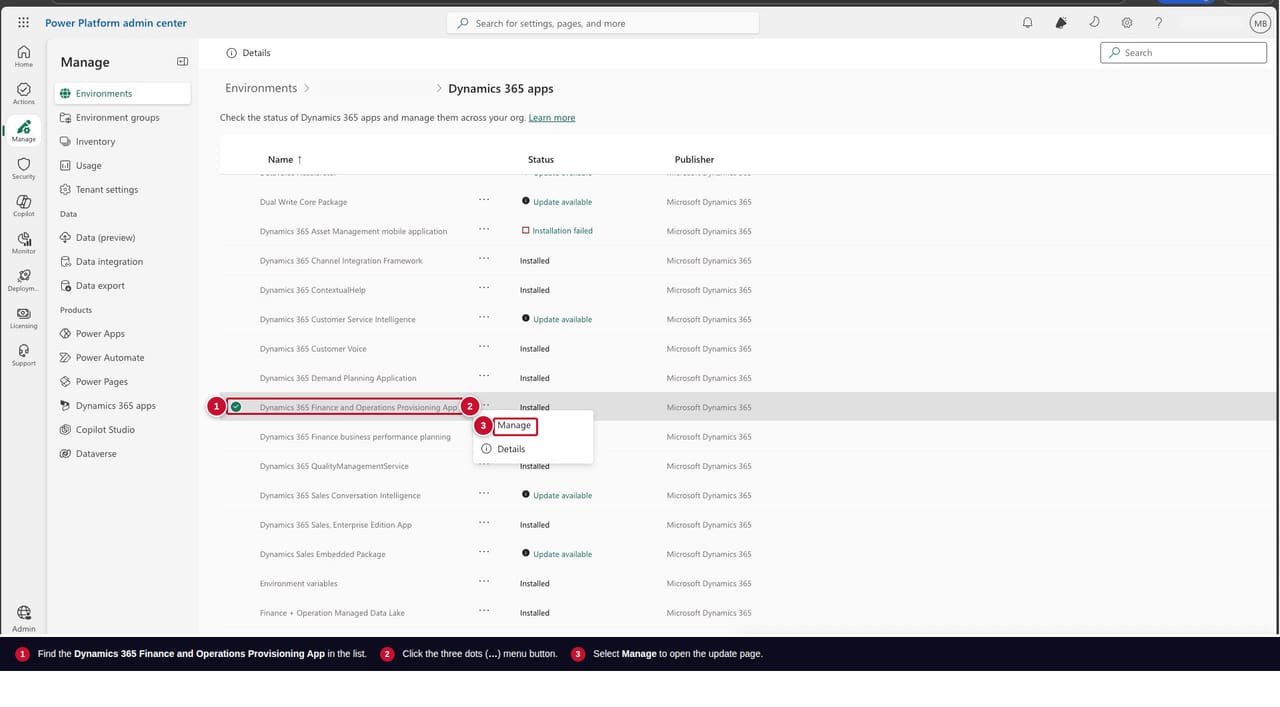 Figure 2: Locate the Finance and Operations Provisioning App (1), click the three-dot menu (2), then select Manage (3).
After clicking Manage you may see a small dialog informing you that you are navigating to a new page. Click OK to proceed. The update page opens in a new browser tab.
On the update page, work through the form from top to bottom:
Select the version of the product — Click the dropdown to see all available Platform and Quality Updates. Choose the latest version at the top of the list. In this example it is 10.0.47.2 Application Version, but the exact number changes as Microsoft ships new PQUs.
I agree to the terms of service — Tick the checkbox. The Install button stays disabled until this is checked.
Install — Click the Install button to kick off the update. The page confirms the request and you can safely close the tab afterwards.
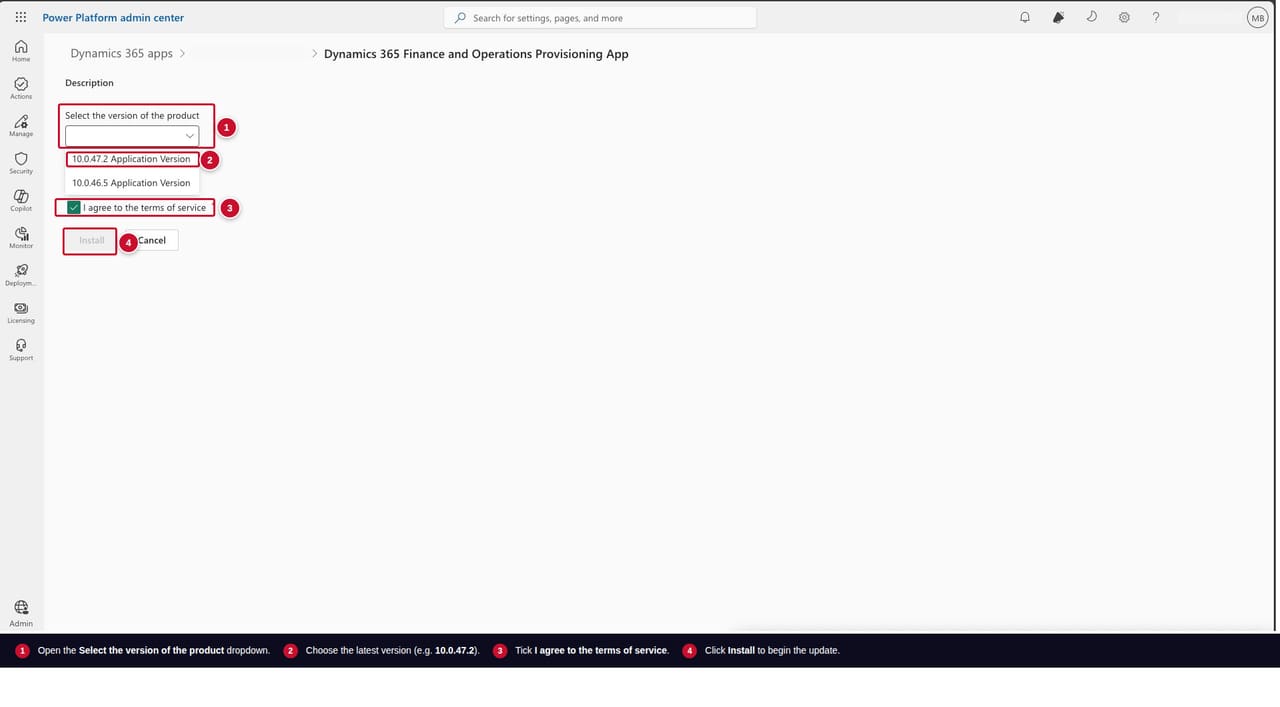 Figure 3: Open the version dropdown (1), select the latest version (2), agree to terms of service (3), and click Install (4).
Once you click Install, the update begins running in the background. End-to-end this typically takes anywhere from 30 minutes to 2 hours, depending on the size of the environment and the scope of the PQU.
You can monitor progress at any time:
While the update is running, the environment cannot accept Finance Explorer connections from Visual Studio 2022 — developers should pause work against this UDE until the install finishes.
After the update completes: Open Visual Studio 2022, reconnect to the environment via Tools → Connect to Dataverse, and run a full build of your X++ model packages against the new platform version. This catches any deprecated metadata or breaking changes early, before they show up in your downstream environments.
With your UDE running the latest application version, take a few minutes to bring the rest of your developer experience back in sync:
Rebuild your X++ model packages — Open Visual Studio 2022, connect to the UDE, and run a full solution build. Address any new compiler warnings or deprecation notices before they reach UAT.
Run your unit and integration tests — A fresh PQU is the perfect moment to confirm your automated test suite still passes against the new platform. Add anything that breaks to a tracking item for the next sprint.
Schedule the same update across your environment chain — Once the developer UDE is validated, plan the same update across UAT and production sandboxes so all environments stay aligned on the same PQU.
Subscribe to the Veriland UDE Tutorial Series — This guide is part of our ongoing D365 F&O UDE series. Upcoming tutorials cover ALM pipelines, multi-developer source control workflows, and zero-downtime promotion patterns from UDE to production.
Our ex-Microsoft consultants run UDE upgrades, ALM pipelines, and managed developer environments so your team can ship X++ code instead of patching infrastructure.
Or call us directly: 01625 569 777