FinOps Workbench talks to the Power Platform admin APIs and, optionally, Lifecycle Services on your behalf. It recognises three kinds of environment, and most actions are enabled or disabled depending on which kind you've selected:
| Kind | What it is |
|---|---|
| UDE | A unified developer environment — an F&O environment with a linked Dataverse org that supports the modern admin APIs (SQL JIT, DB Sync, dev-tools downloads). |
| LCS | An LCS-managed F&O environment. Managed through Lifecycle Services rather than the Power Platform admin API; some actions redirect you to the LCS portal. |
| Dataverse | A plain Dataverse environment with no F&O database. |
Everything runs against your own signed-in identity — there is no service account, tenant id, client id or secret to configure. You must be an administrator on the environments you want to manage.
login.microsoftonline.com, the Power Platform admin APIs, your Dataverse org URLs, and — for LCS features — lcs.dynamics.com / lcsapi.lcs.dynamics.com).The Windows installer is not code-signed, so SmartScreen may warn on first launch. The macOS build is signed with a Developer ID and notarized by Apple, so it opens without a Gatekeeper warning.
Download the latest build from the download page and pick the file for your machine:
| Download | For |
|---|---|
FinOpsWorkbench-<version>-x64-setup.exe | 64-bit Windows (most PCs) |
FinOpsWorkbench-<version>-arm64-setup.exe | Windows on ARM |
FinOpsWorkbench-<version>-ia32-setup.exe | 32-bit Windows |
FinOpsWorkbench-<version>-setup.exe | Combined Windows (auto-selects your architecture) |
FinOpsWorkbench-<version>-arm64.dmg | macOS on Apple Silicon (M1/M2/M3…) |
FinOpsWorkbench-<version>-x64.dmg | macOS on Intel |
…-setup.exe. Because it isn't code-signed, SmartScreen may show "Windows protected your PC" — click More info → Run anyway..dmg and drag FinOps Workbench into your Applications folder.Updates — new versions are published to the same download page. On Windows, run the newer installer over your existing install; on macOS, replace the app in Applications. Your settings and cached session are preserved either way.
<your UPN> and a count of visible / total environments.Behind the scenes the app also tries to set up two extra sessions from the same sign-in, silently where it can: a developer-tools session (used later when you download assets) and an LCS session (so LCS SQL access and asset downloads don't need a separate sign-in). If either can't be captured silently, the app sets it up the first time you need it.
Your session is remembered securely between launches (encrypted at rest with a key bound to your machine and user account), so you normally only sign in once. On startup the app restores your previous session; if it has expired you'll be prompted to sign in again. Sign out clears all tokens, the LCS session, browser cookies and cached SQL grants.
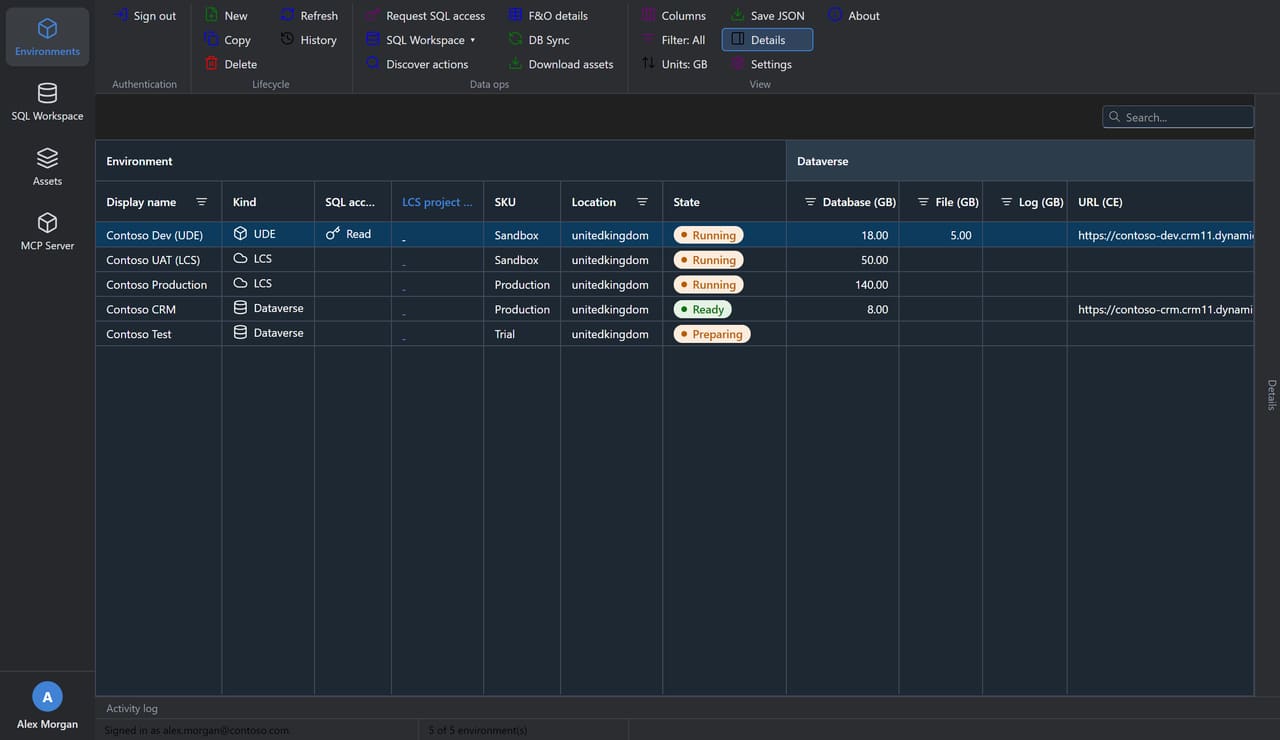
The home page lists every environment you can administer, with live status, capacity, versions and lifecycle state.
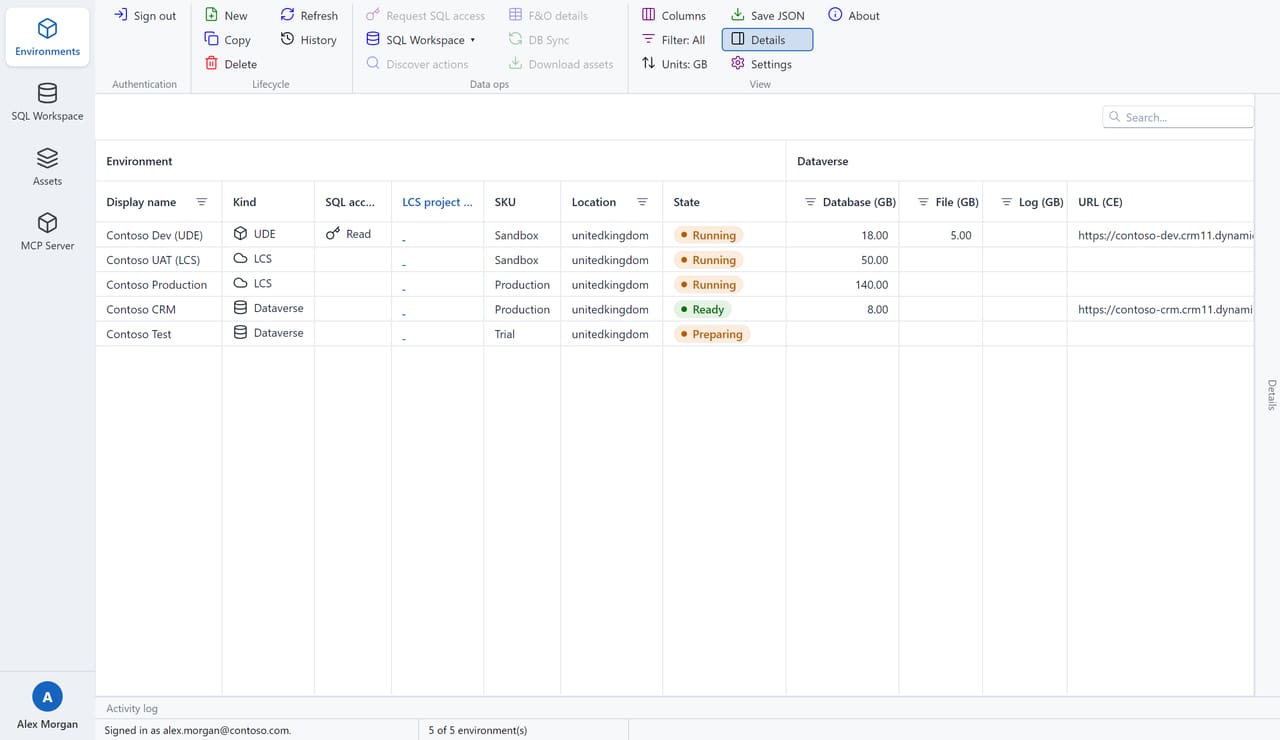 The Environments page — every environment you can administer, in one grid.
From the View group you can apply the F&O preset (default), the Dataverse preset or Show all columns; switch storage columns between GB / MB; and filter to All, UDE / F&O only or Dataverse only.
The Details panel (right edge) shows a full, curated breakdown of the selected environment — general info, status, capacity, Dataverse and F&O metadata, links and more. The Activity log (bottom edge) records everything the app does, colour-coded by severity with timestamps. Right-click to Copy row or Copy all messages. When something doesn't work as expected, this is the first place to look.
These live in the Lifecycle and Data ops ribbon groups. Actions that change or provision environments always confirm first, and most are submitted asynchronously — click Refresh to track progress in the Operation status pill.
| Action | Kind | What it does |
|---|---|---|
| New environment | any | Provision a new environment — display name, SKU (Sandbox / Production / Trial), Azure region, template, and whether to enable dev tools, demo data and a database. |
| Copy | UDE / F&O | Overwrite a target environment with a copy of the selected one. Type-to-confirm; this replaces the target and cannot be undone. |
| Delete | UDE / Dataverse | Permanently delete an environment. You must type the environment's display name exactly to confirm. |
| Refresh | — | Reload the list and fetch F&O details, LCS enrichment, and (if enabled) LCS-only environments in the background. |
| History | UDE / Dataverse | Show the lifecycle-operation history, with a per-operation stage breakdown. |
| DB Sync | UDE | Trigger a full database synchronisation and follow it live in the Operation status pill. |
| Save JSON | — | Save the selected environment's raw definition to a .json file. |
| Discover actions | UDE / Dataverse | Probe the Dataverse $metadata for available actions. |
| F&O details | UDE | Read the F&O application/platform version, deployment type and state. |
Select an environment and click Request SQL access (enabled for UDE and LCS environments). Choose a reason and an access level:
Credentials are valid for about 12 hours and only from the allowed IP. You must be a system administrator on the environment.
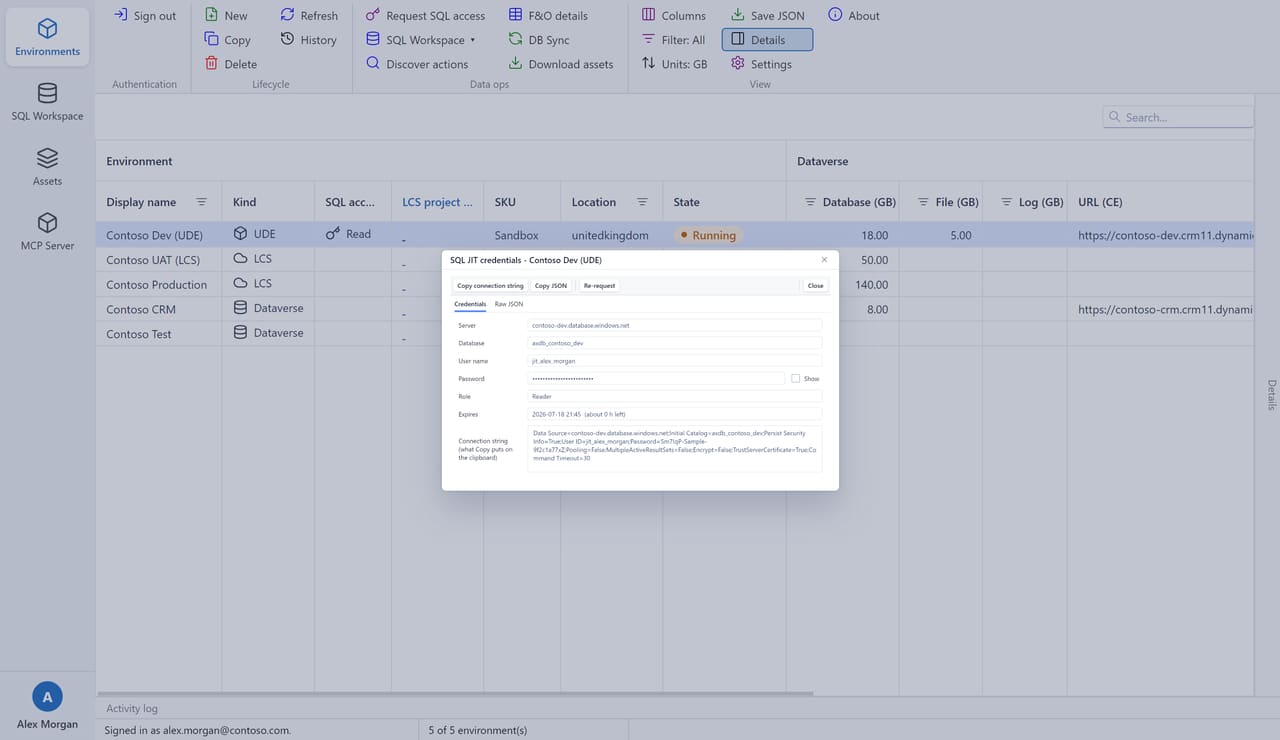 The SQL JIT credentials viewer — copy the connection string straight into SSMS or your app.
The Credentials tab shows the server, database, user name, password (masked, with a Show toggle), role and expiry, plus a ready-to-use connection string. Copy connection string puts the .NET/SSMS-ready string on the clipboard; Re-request obtains a fresh grant — for example to upgrade a read grant to read/write.
The granted credentials are cached for the session (the environment's SQL access column shows a key), so opening the SQL Workspace on that environment connects straight away.
An SSMS-style workspace for browsing and querying environment databases.
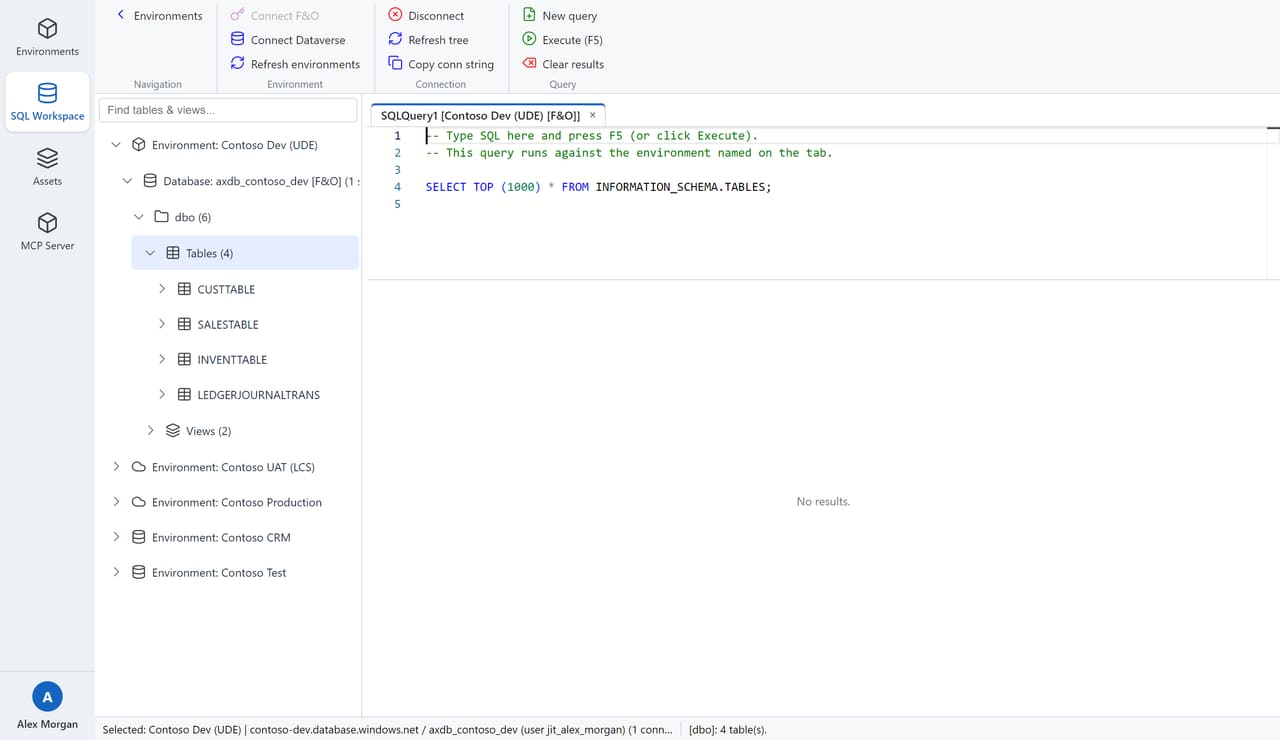 The SQL Workspace — object browser, query editor and results grid, with T-SQL auto-complete.
SELECT TOP (1000) * FROM [schema].[table] and run it automatically.Connecting — select an environment in the object browser and use the ribbon (or right-click → Connect):
Select an environment and click Download assets to open the picker (enabled for UDE and LCS environments). It lists everything available for that environment:
Tick what you want and click Download… to save to a folder. Downloads run in the background with per-item progress; you can minimise the window (progress stays visible in the system tray / menu bar) and start several batches at once.
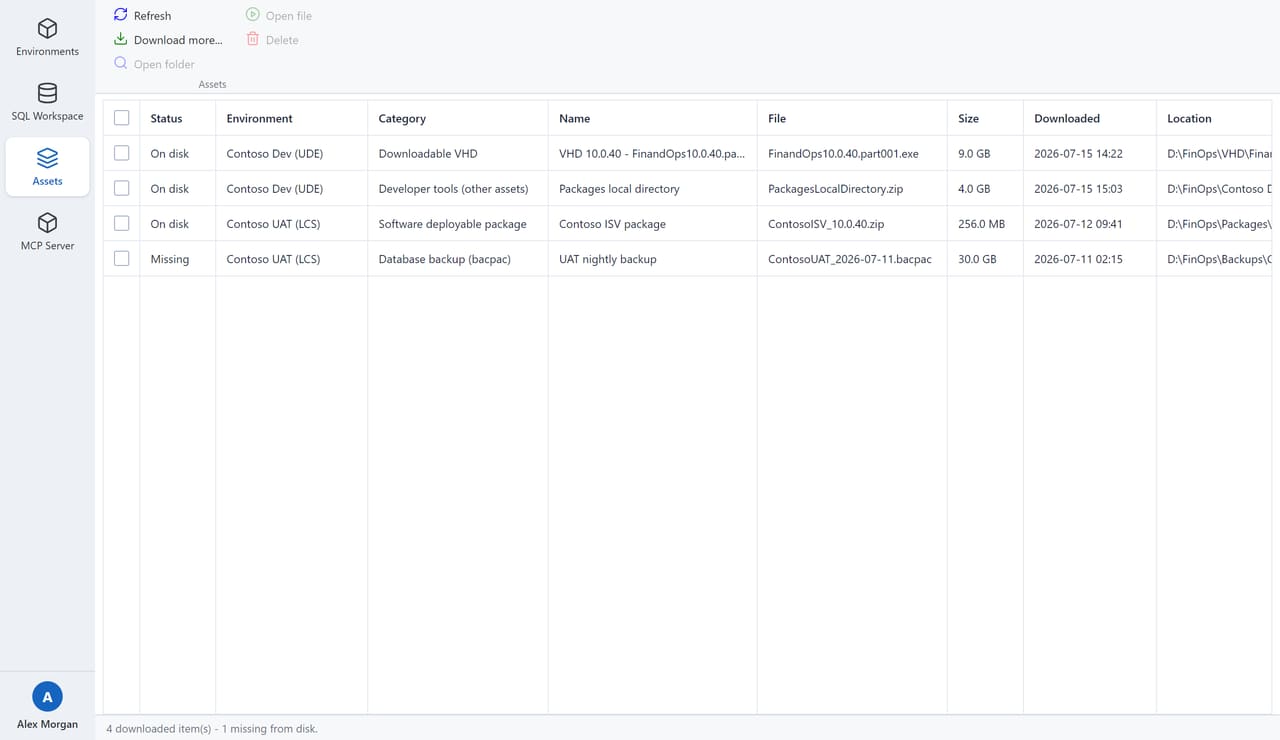 The Assets page — your download library, with quick actions to open or remove files.
The Assets page is your download library — it shows what you've already downloaded, whether each file is still on disk, and quick actions to Open file, Open folder, Download more… or Delete (sends the file to the Recycle Bin / Trash).
FinOps Workbench can expose your signed-in session to AI tooling (Claude Desktop or Claude Code) through a built-in Model Context Protocol server. An assistant can then list and inspect environments, read F&O details and operation status, and run SQL on your behalf.
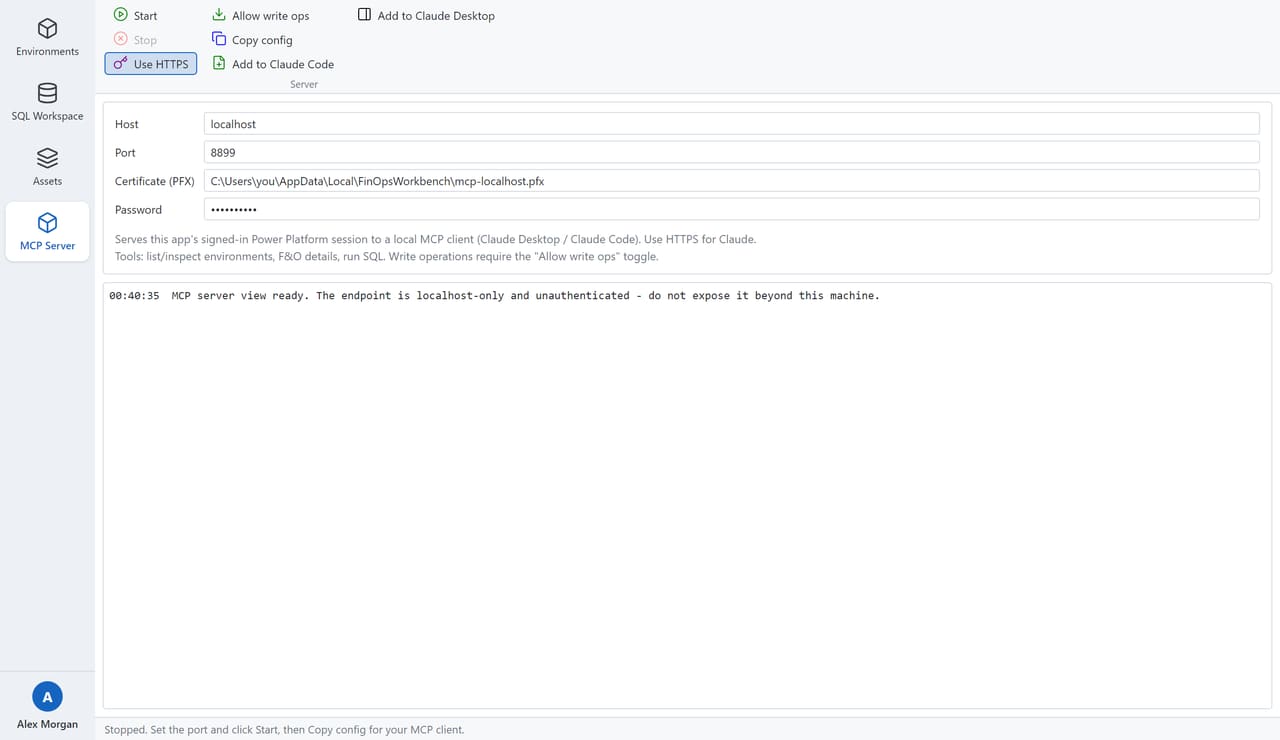 The MCP Server page — start the server and register it with Claude in one click.
localhost / 8899 are fine for local use).https://localhost:8899".claude mcp add for you (user scope). In Claude Code, run /mcp to confirm.mcp-remote bridge. Fully quit and reopen Claude Desktop afterwards.Tools exposed: auth_status, sign_in, list_environments, get_environment_details, get_environment_history, get_finops_details, get_operation_status, run_sql, and request_sql_jit (guidance only). SQL runs against a held JIT grant for F&O/UDE environments, or the read-only Dataverse TDS endpoint for plain Dataverse orgs.
Write operations (create_environment, copy_environment, delete_environment, dbsync_to_finops) are off by default. Turn on Allow write ops only if you want the assistant to make changes; the toggle takes effect immediately.
The AOT page turns an environment's metadata into a browsable, searchable Application Object Tree with a full X++ editor — no SQL Server, no DYNAMICSXREFDB restore, no Visual Studio required. Everything is read from the environment's PackagesLocalDirectory and indexed locally.
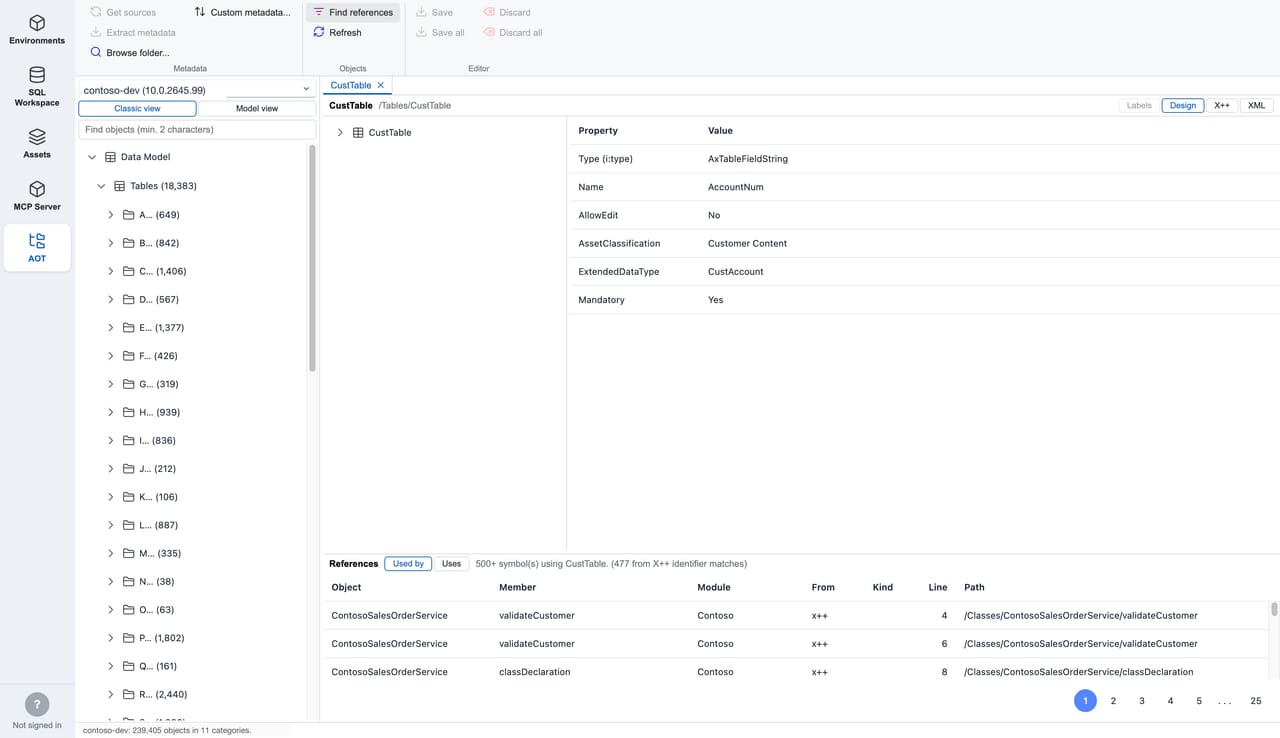 The AOT browser — the complete Application Object Tree, with cross-references resolved from the metadata itself.
Pick an environment in the source dropdown and click Download metadata — one operation downloads its PackagesLocalDirectory.zip (via the developer-tools service), extracts it and builds the object index. Each step resumes where it left off, so the button is also the "continue where it stopped" button. Already have an extracted folder (a build VM copy, a VHD mount)? Point straight at it with Browse folder….
Downloads go into a shared source store (you choose the folder the first time): one download per application version, named by it and reused by every environment on that build — two sandboxes on the same version never download the multi-GB source twice. Manage metadata… on the ribbon lists the stored versions with their sizes and lets you delete or redownload any of them. Only the Microsoft source is shared this way; your custom metadata stays configured per environment.
While it runs, the status bar shows a filling progress bar for the current step. Click Details for a panel listing every step — download, extract, index, cross-references — with how much is done, how fast it is going (MB/s while downloading, files/s while indexing) and how long is left.
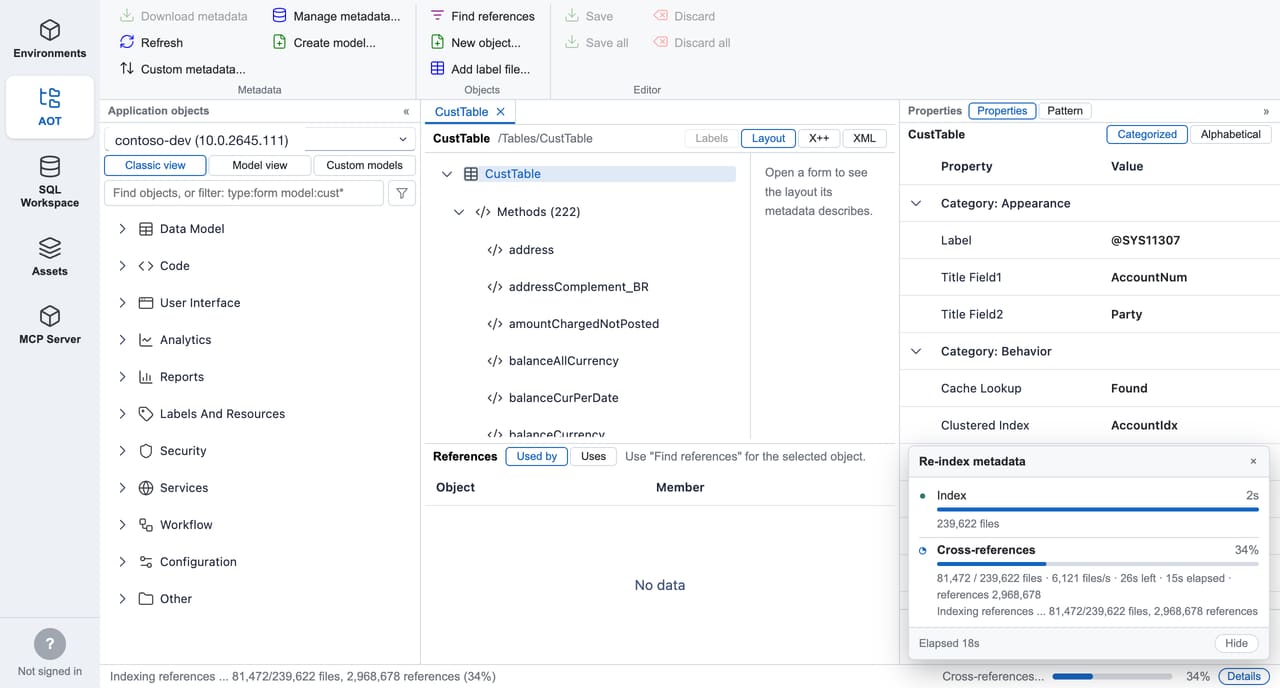 Detailed progress for a long metadata operation — files/s, time remaining, and per-step timings.
Indexing sweeps the metadata files themselves, so the tree holds the complete AOT — a stock application is around 240,000 metadata files, shown as roughly 180,000 objects (a label file's languages count as one object, not one per language) — including the pure-metadata types (security objects, menu items, EDTs…) that a cross-reference database barely covers.
* and ? are wildcards), and it is also where you filter (see below).@FileId:LabelId token shows its text, and F12 jumps to that label.The find box is the whole filter: type text to search names, add facets to narrow what you are looking at.
| Type this | To see |
|---|---|
custtable | every object whose name contains it |
type:tables custtable | only tables |
type:tables,forms | tables and forms (a category works too: type:"user interface") |
model:"Application Suite" | only that model — model:app* matches by pattern |
custom:true | only objects in your own models |
The funnel button beside the box opens a panel listing every element type and model the environment holds, with counts — tick what you want and it applies as you go, writing the same text into the box. Each facet also appears as a chip below the box; click a chip's × to drop it, or Clear to drop them all.
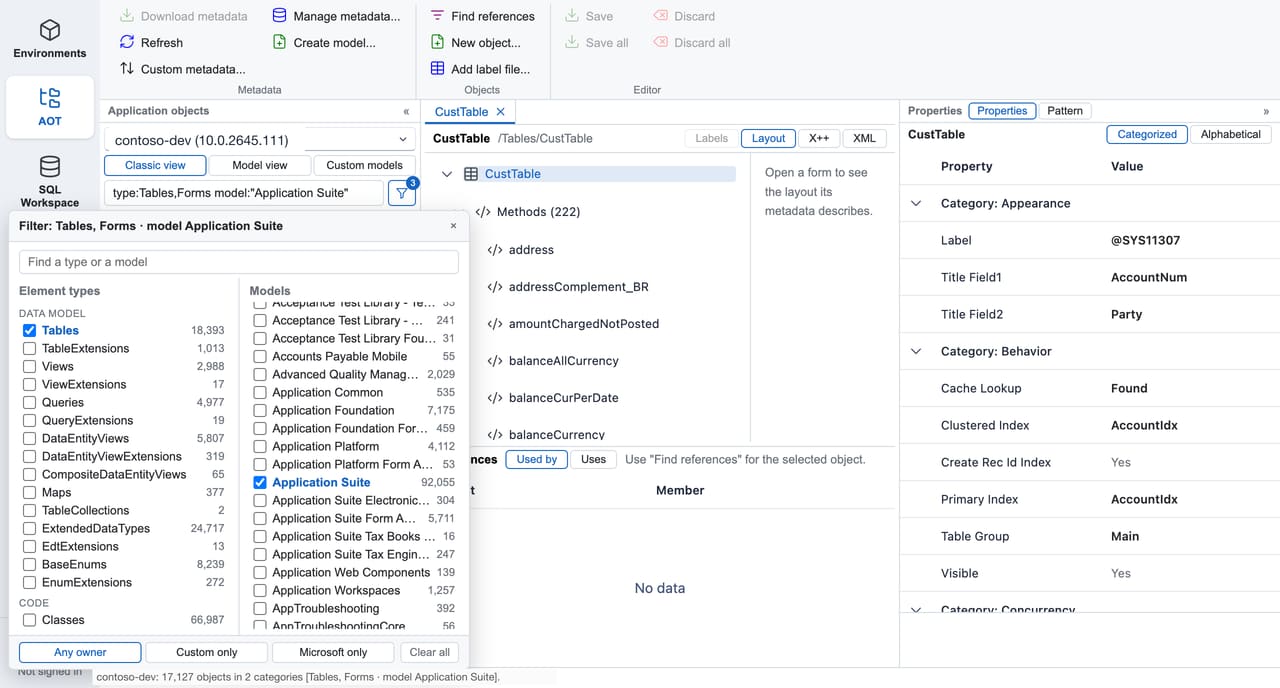 Filter by type, model or custom-only — type the facets, or tick them in the funnel panel.
Text and facets do different jobs: text switches the tree to a flat list of matches, while facets keep the tree's shape and narrow what is in it — categories, models and counts included.
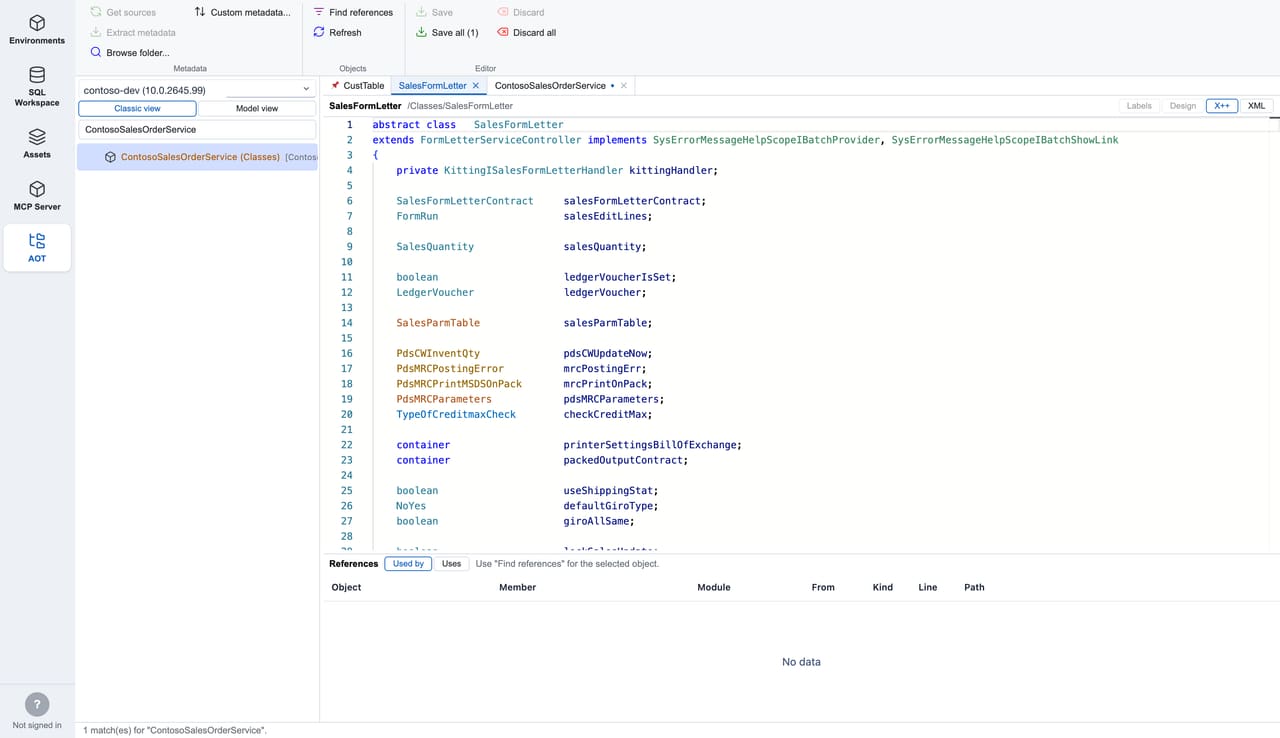 Parsing is derived from the actual X++ compiler — classes, tables, EDTs and enums each get their own colour.
Source opens in an editor whose parsing is derived from the actual X++ compiler, so the colouring understands the language rather than approximating it:
31\12\2026 dates and verbatim strings), macros, intrinsics and labels all render like Visual Studio.Ctrl/⌘+Shift+O jumps between methods and fields.Ctrl/⌘+B, or right-click → Go to AOT object) on any identifier to jump to that table, class, EDT or enum.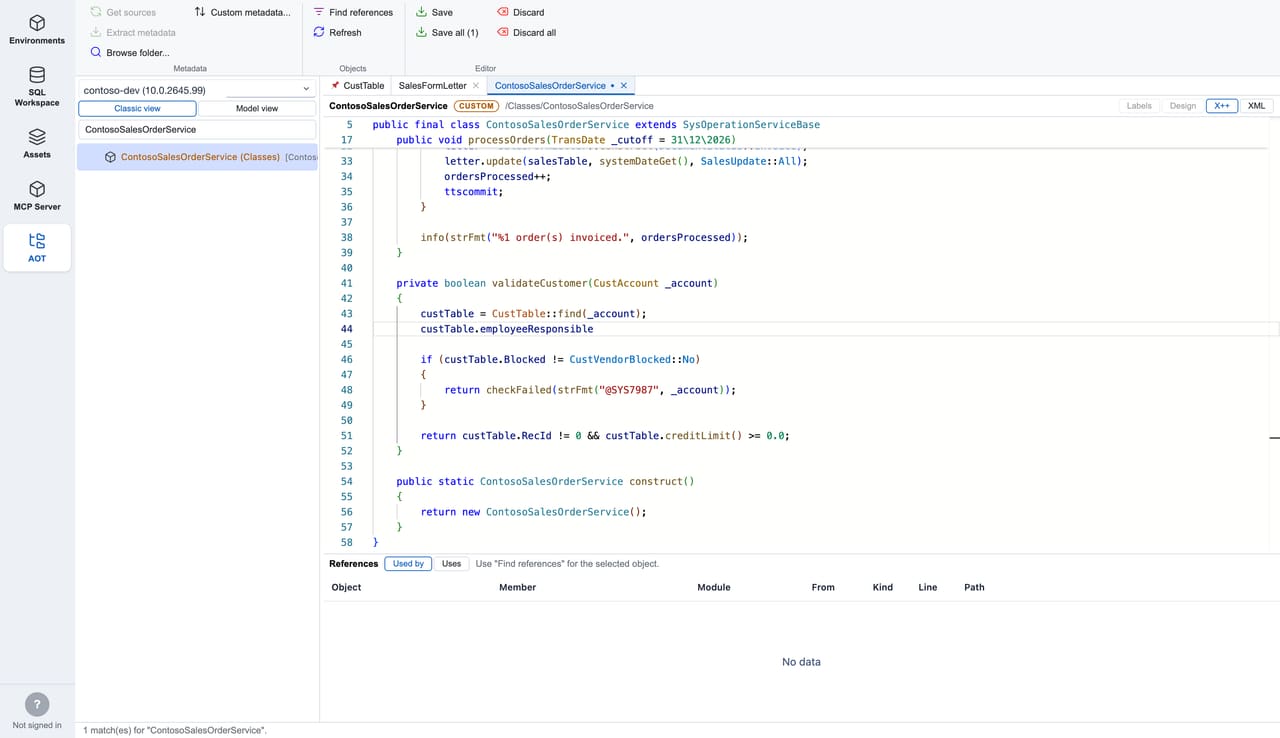 Multi-tab editing — pin tabs, track unsaved changes, and save across several tabs at once.
Objects that live in a custom model (see overlays below) are editable right in the viewer — standard Microsoft code stays read-only. While editing you get IntelliSense: object names, keywords and intrinsics, your variables with their declared types, Type:: static methods and enum values, and variable. members resolved through the type's full inheritance chain.
On a table buffer that includes the members every table inherits but no metadata file mentions — insert(), update(), validateWrite(), RecId and the rest of the Common API, with their real signatures — and the system fields follow the table's own properties, so a table without CreatedBy is not offered createdBy.
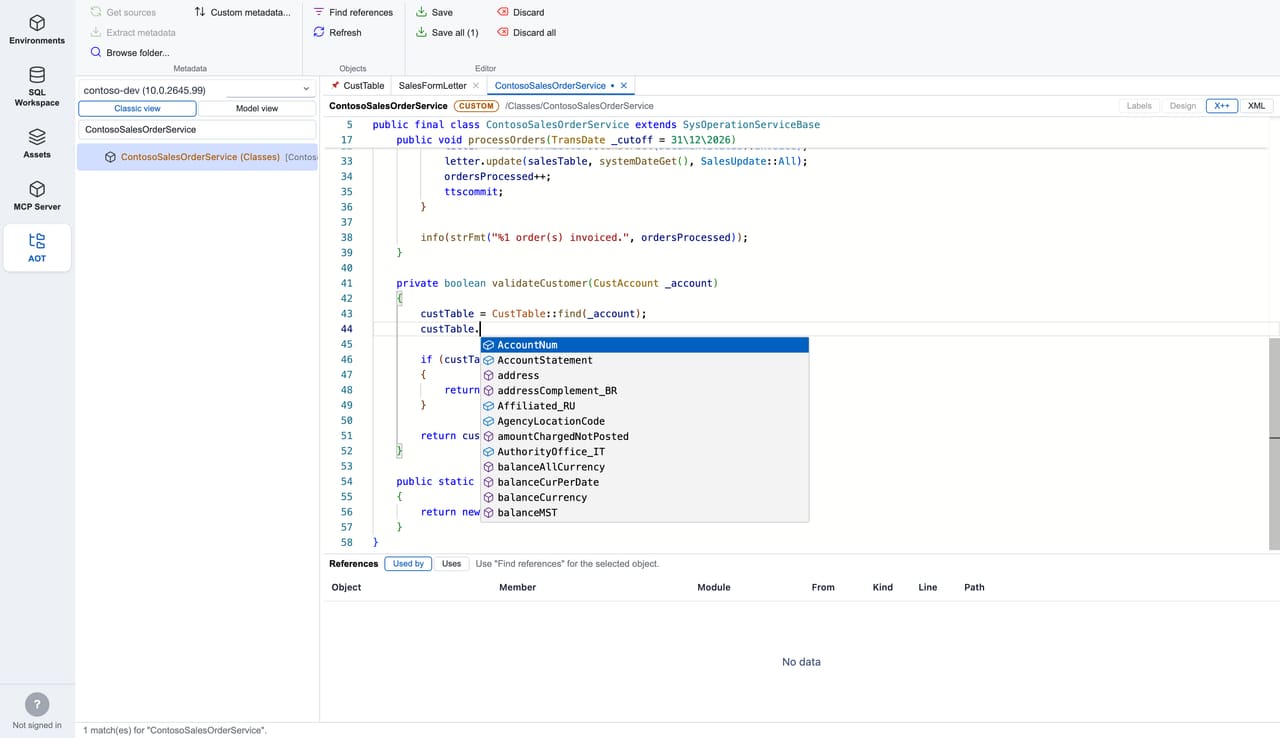 IntelliSense resolves fields and methods through the object index and the type's inheritance chain.
Save (Ctrl/⌘+S) writes your method changes back into the object's metadata XML precisely — only the code you touched changes, so the file diffs cleanly in Git. The ribbon's Editor group also has Save all / Discard / Discard all. Form data-source and control code can't be edited yet — the app refuses rather than risking the XML.
Labels in your own models are editable too, right in the Labels grid: click a text or description cell to type, use the add-row button for a new label (its id is validated and must be unique in the file), or delete a row. + Add language on the chip bar creates a new language sibling of the file. Saving rewrites the .label.txt files exactly as Visual Studio writes them (UTF-8 BOM, CRLF, Id=Text with ;comment lines), and edited labels go through the same Save / Discard buttons as X++.
Custom metadata… lets you overlay your own metadata folder (a Visual Studio Metadata folder or a Git working copy) on top of the environment's download, per environment. Custom objects are highlighted in the tree, table and form extensions merge into the designer, and the overlay is where editing and IntelliSense activate.
Two ribbon actions in the Metadata group write new metadata into your overlay folder (never into the shared source store):
@FileId: resolves globally) and choose one or more languages. It opens on its Labels grid straight away.Both register straight into the open index, so the tree, search and label hovers see the new objects immediately — no re-index.
Open Settings from the ribbon (View group).
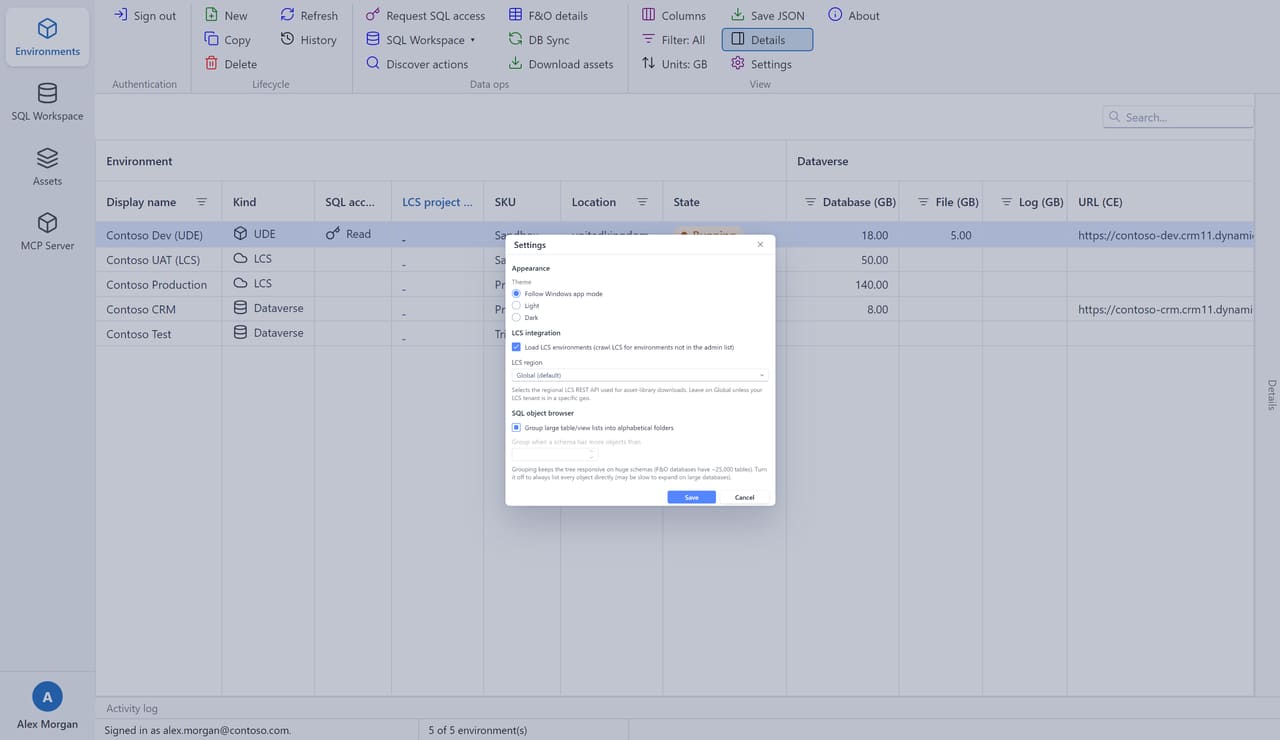 Settings — theme, LCS options and SQL object-browser behaviour.
Settings are saved to %LOCALAPPDATA%\FinOpsWorkbench\settings.json on Windows, or ~/Library/Application Support/FinOpsWorkbench/settings.json on macOS.
The app follows your Windows or macOS light/dark preference automatically — every view, including the AOT browser and X++ editor:
 Dark mode — the app re-themes the whole UI to match your OS.
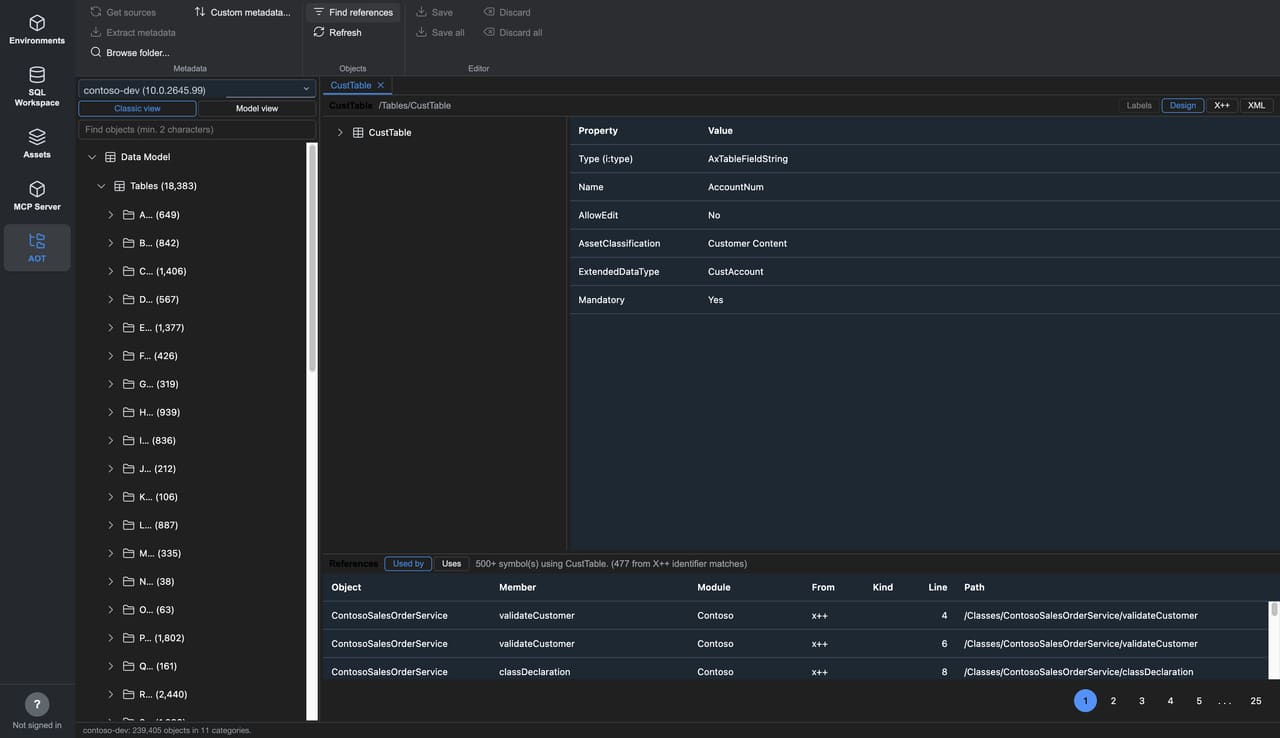 The AOT browser and X++ editor follow the theme too.
| Shortcut | Where | Action |
|---|---|---|
| F5 | SQL editor | Run the active query tab |
| Ctrl+Space | SQL editor | Open auto-complete |
| Tab | SQL editor | Indent (does not change focus) |
| Type to search | Environments grid / object tree | Incremental find |
| Double-click | Environments row | Open the environment JSON viewer |
| Double-click | SQL object tree table/view | Open & run SELECT TOP (1000) |
| Ctrl / Shift + click | Environments grid | Multi-select rows |
| F12 or Ctrl+B | X++ editor | Go to the AOT object under the cursor |
| Ctrl+S | X++ editor / Labels grid | Save the edited custom object or labels |
| Ctrl+Shift+O | X++ editor | Jump to a method/field (outline) |
| Ctrl+Space | X++ editor | Open IntelliSense (custom objects) |
| Middle-click | AOT editor tab | Close the tab |
On macOS, use ⌘ (Command) in place of Ctrl.
FinOps Workbench stores everything under your own user profile — nothing is sent anywhere except the Microsoft services you're administering. The per-user data folder is %LOCALAPPDATA%\FinOpsWorkbench\ on Windows and ~/Library/Application Support/FinOpsWorkbench/ on macOS.
| Data | Location |
|---|---|
| Settings (theme, LCS options) | settings.json in the data folder |
| Download history (Assets page) | downloads.json in the data folder |
| AOT object index (one SQLite file per metadata folder) | aotIndex/ in the data folder |
| AOT custom-metadata folders (per environment) | aot.json in the data folder |
| Tokens, LCS session, cached SQL grants | Encrypted .edat files (AES-256-GCM, key bound to your machine and user account) |
| Sign-in browser sessions (cookies) | Managed by the app in its own profile inside the data folder |
Secrets are never logged. Tokens, passwords, cookies, connection strings and download SAS URLs are kept out of the Activity log and diagnostics.
SmartScreen warns when I run the installer (Windows). The Windows installer isn't code-signed. Click More info → Run anyway. This is expected for a release from the official download page.
macOS won't open the app / says it's from an unidentified developer. The macOS build is signed with a Developer ID and notarized by Apple, so it should open normally. If macOS still blocks it, right-click the app in Applications → Open → Open to confirm once.
Sign-in window is blank or won't load. The app uses an embedded Chromium browser window. If it can't start (seen on some virtual machines), the app falls back to your default browser to finish sign-in — watch the Activity log. Ensure the machine can reach login.microsoftonline.com.
"Request SQL access" is disabled. It's only available for UDE and LCS environments. Plain Dataverse environments have no F&O database to grant access to — query them via SQL Workspace → Dataverse tables instead.
The SQL workspace sits on "Waiting for Microsoft to provision JIT SQL access…". Microsoft provisions the SQL login and firewall rule on demand; this can take a minute or two on a fresh grant, and the app retries for up to four minutes. A changed public IP is a common cause — re-request access to refresh the firewall rule.
The AOT page says the environment "has no browsable sources yet". The object tree is built from the environment's PackagesLocalDirectory. Click Download metadata to download, extract and index it in one go (the download is several GB, so the first run takes a while — it resumes if interrupted). If you already have an extracted copy on disk, Browse folder… uses it directly with no download.
X++ source is read-only / there is no Save button. Only objects in a custom model are editable. Overlay your model's Metadata folder via Custom metadata… — its objects highlight in the tree and open editable. Microsoft's standard code always stays read-only, and form data-source/control code isn't editable yet.
Claude can't connect to the MCP server. Make sure the server is Started, Use HTTPS is on, and you've registered it with Add to Claude Code / Desktop. For Claude Desktop, fully quit and reopen it after adding, then ask the assistant to call auth_status.
Do I need to configure a tenant, client id or secret? No. The app signs you in interactively with your own account and uses your identity for everything.
Is my session shared with anyone? No. Tokens are stored encrypted on your machine and used only to call Microsoft services. The MCP server, if you start it, is localhost-only.
Do I need SQL Server or Visual Studio to browse the AOT? No. The AOT browser and X++ editor read from the environment's PackagesLocalDirectory and index it locally — no SQL Server, no DYNAMICSXREFDB restore and no Visual Studio.
Can I manage LCS environments fully from the app? Partly. You can list them, enrich their details, request SQL access, and download LCS assets. Copy, Delete, History and DB Sync for LCS environments must be done in the LCS portal.
Does querying Dataverse cost or change anything? The Dataverse SQL endpoint is read-only — only SELECT works, and it needs no separate credentials beyond your sign-in.
Is the app free? Yes. FinOps Workbench is built and maintained by Veriland Consulting for the Dynamics 365 community — free to use and share, provided "as is" without warranties.
Download the free app for Windows or macOS, or talk to the Veriland team about your Dynamics 365 and Power Platform delivery.
Or call us directly: 01625 569 777